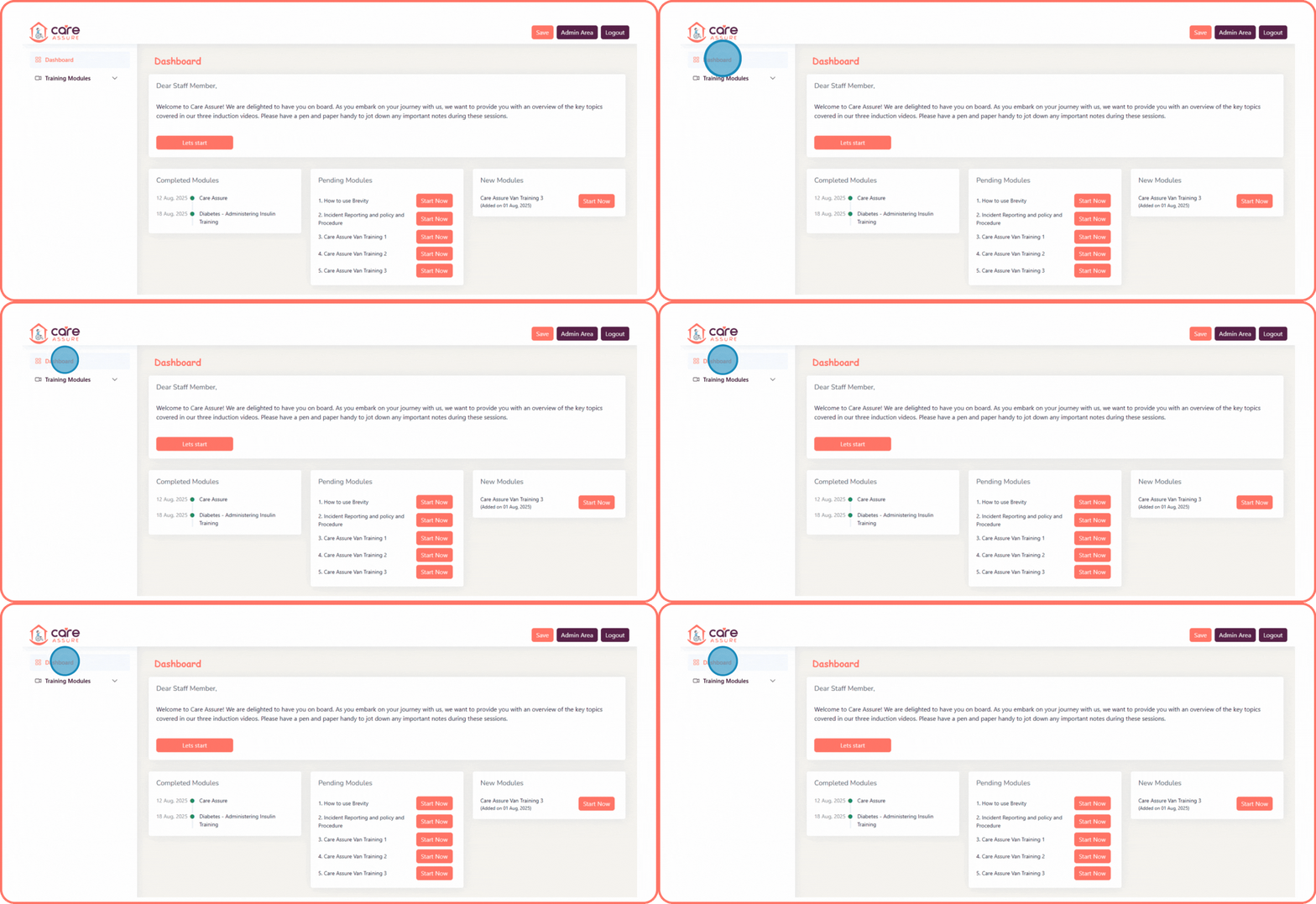
How to onboard a staff member on the training portal
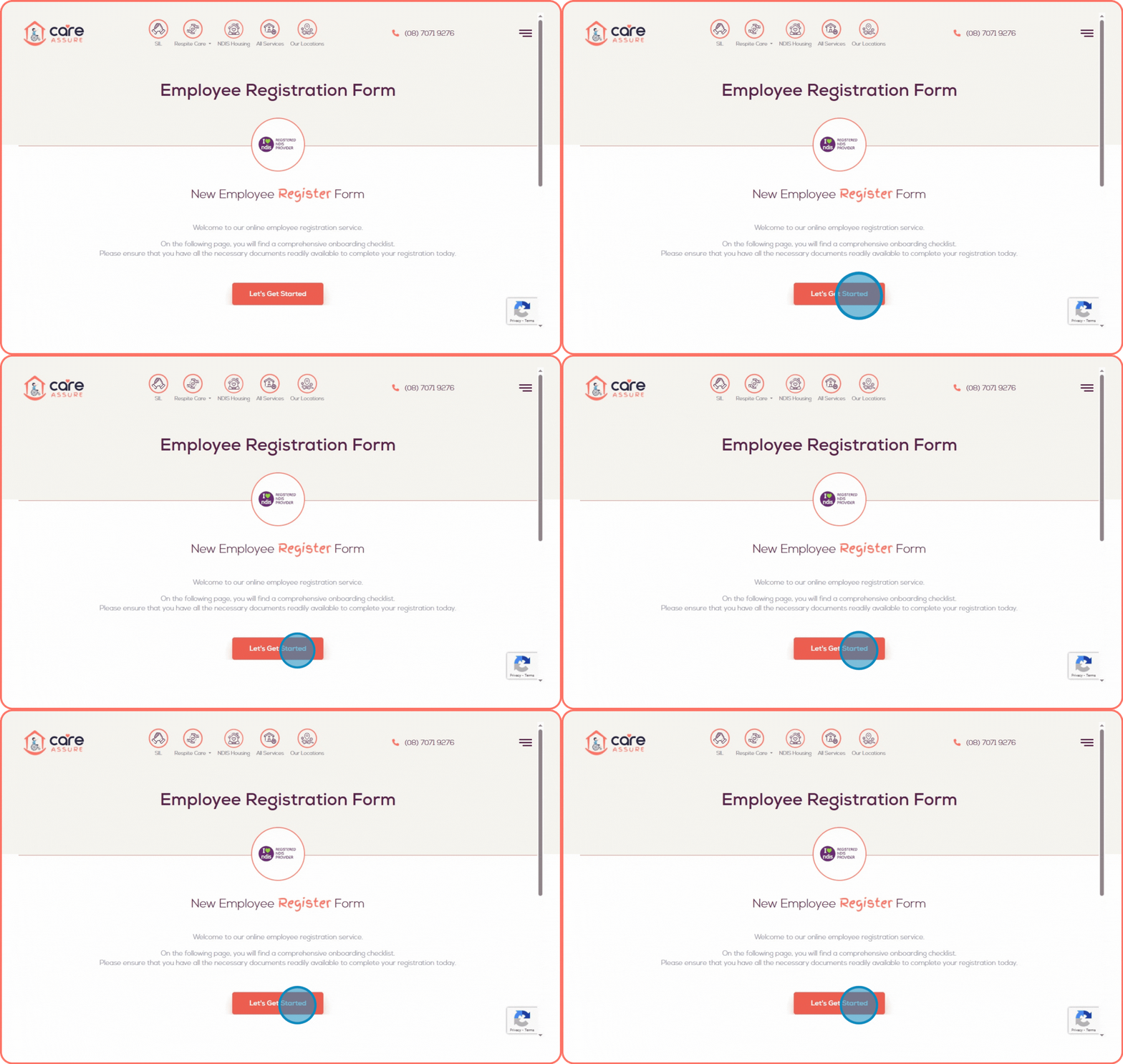
step: 1
Navigate to https://forms.careassure.com.au/employee-portal/login.php
The Employee Registration Form will appear on your screen.
Click the "Let’s Get Started" button to continue.
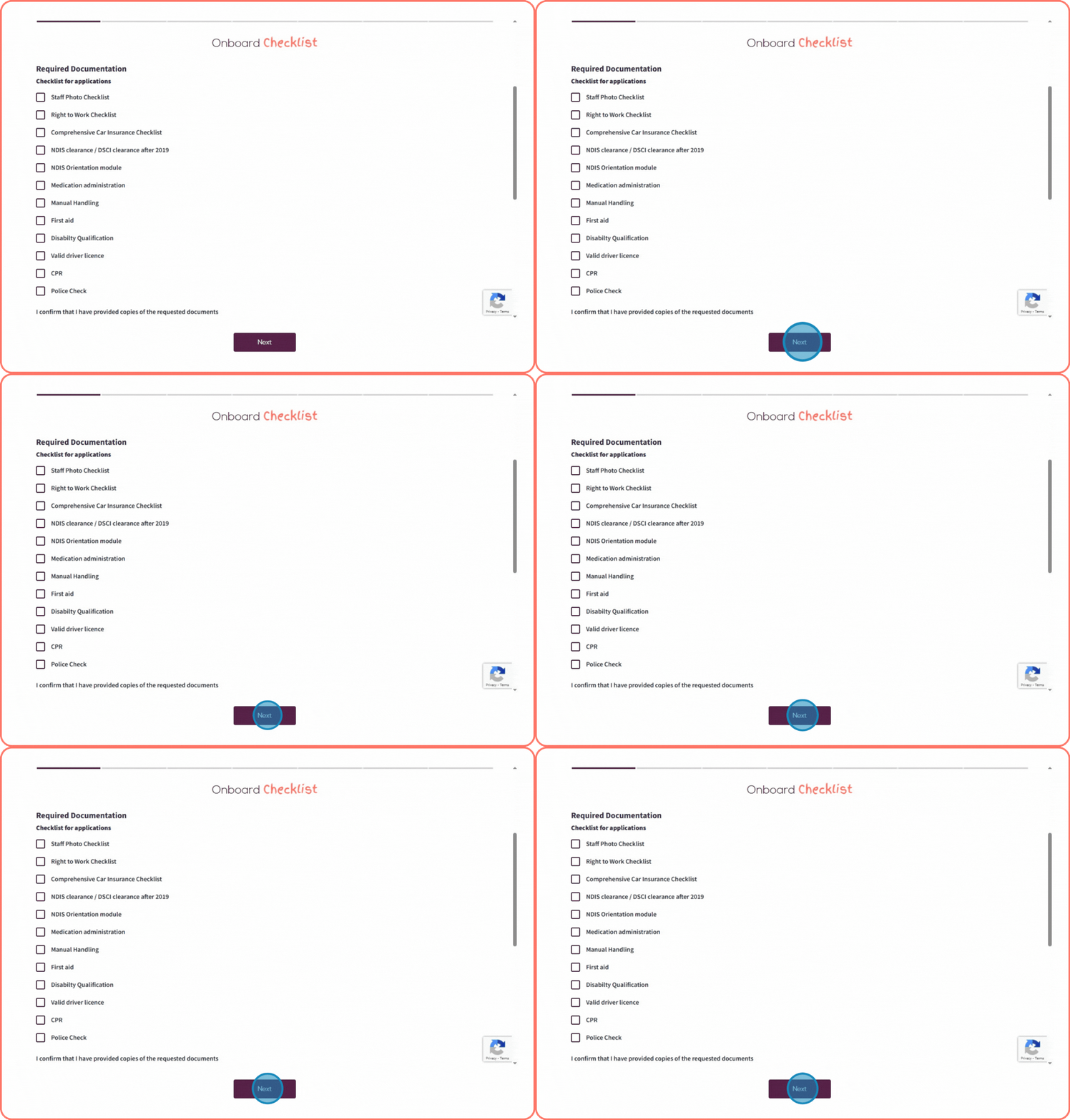
Step 2:
Upload all the documents listed in the Checklist for Applications.
After uploading all required files, click the "Next" button to proceed.
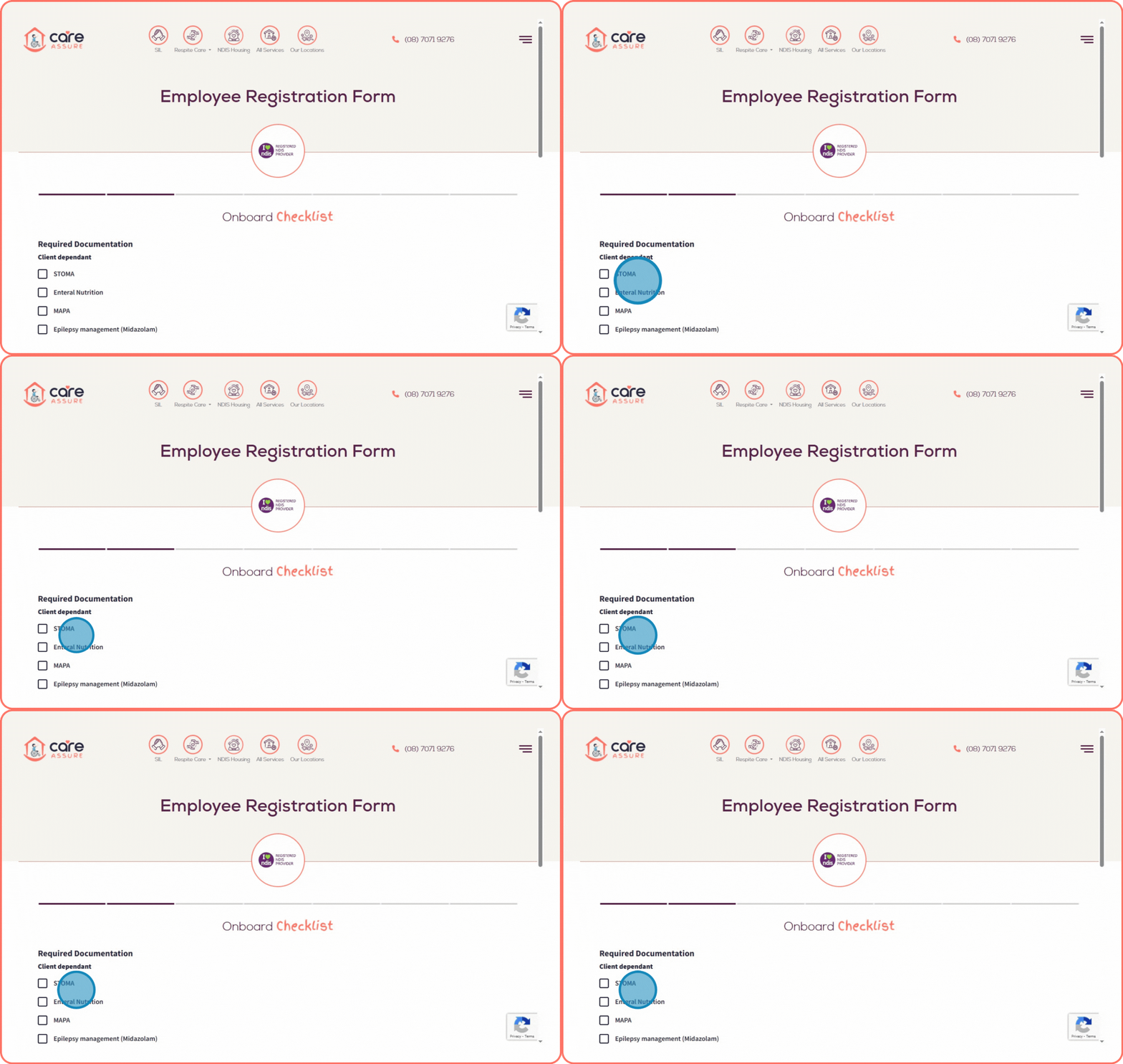
Step 3:
Upload all required documents under the Client Dependant section.
Ensure each file is correctly attached before proceeding.
Step 4:
Review the list under Required Documentation.
Upload each document in the designated section.
Once all required files are uploaded, click the Next button to continue.
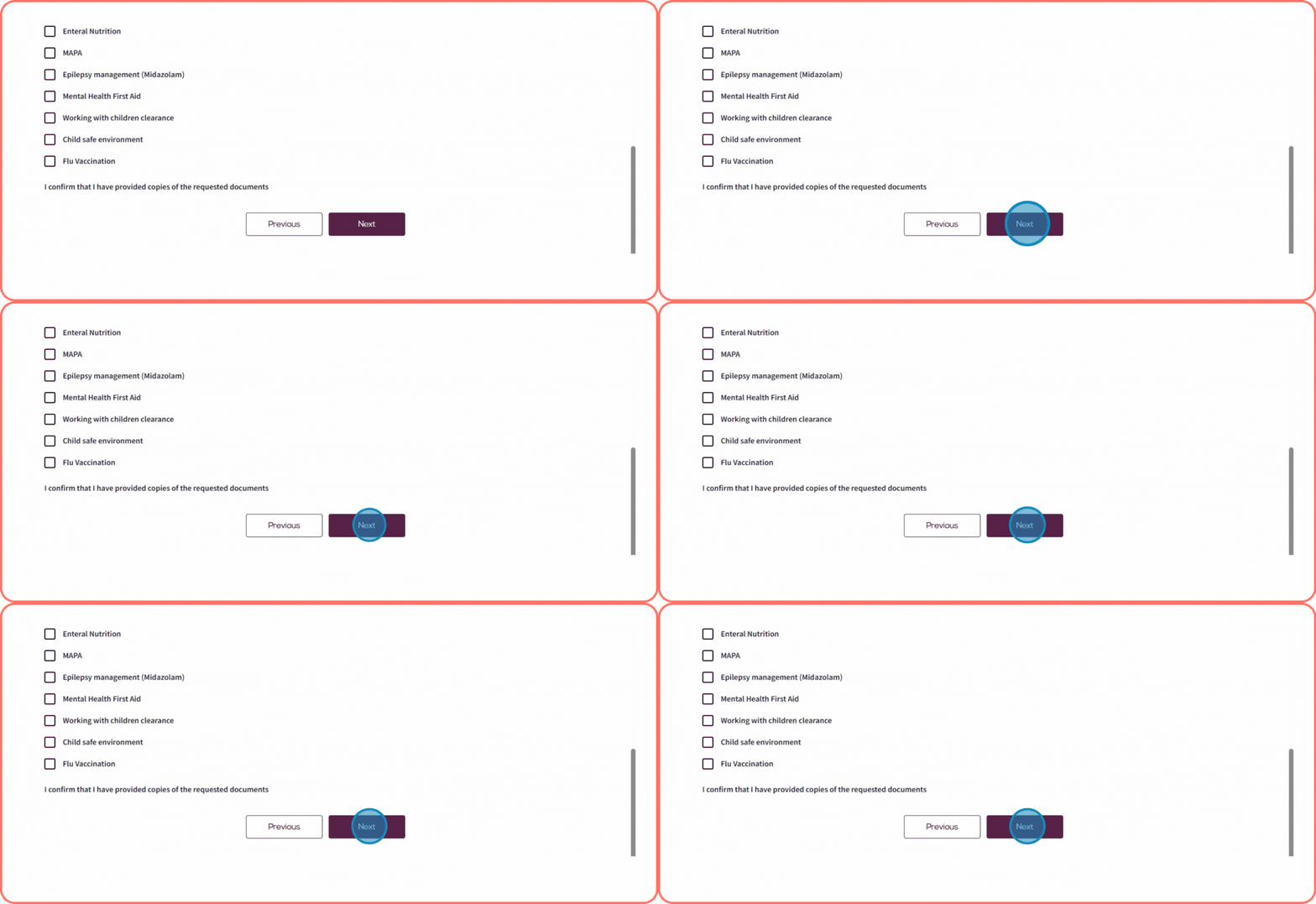
Step 5:
The New Employee Registration Form will be displayed
- Enter all required information in the form fields.

- Click the Next button to continue.
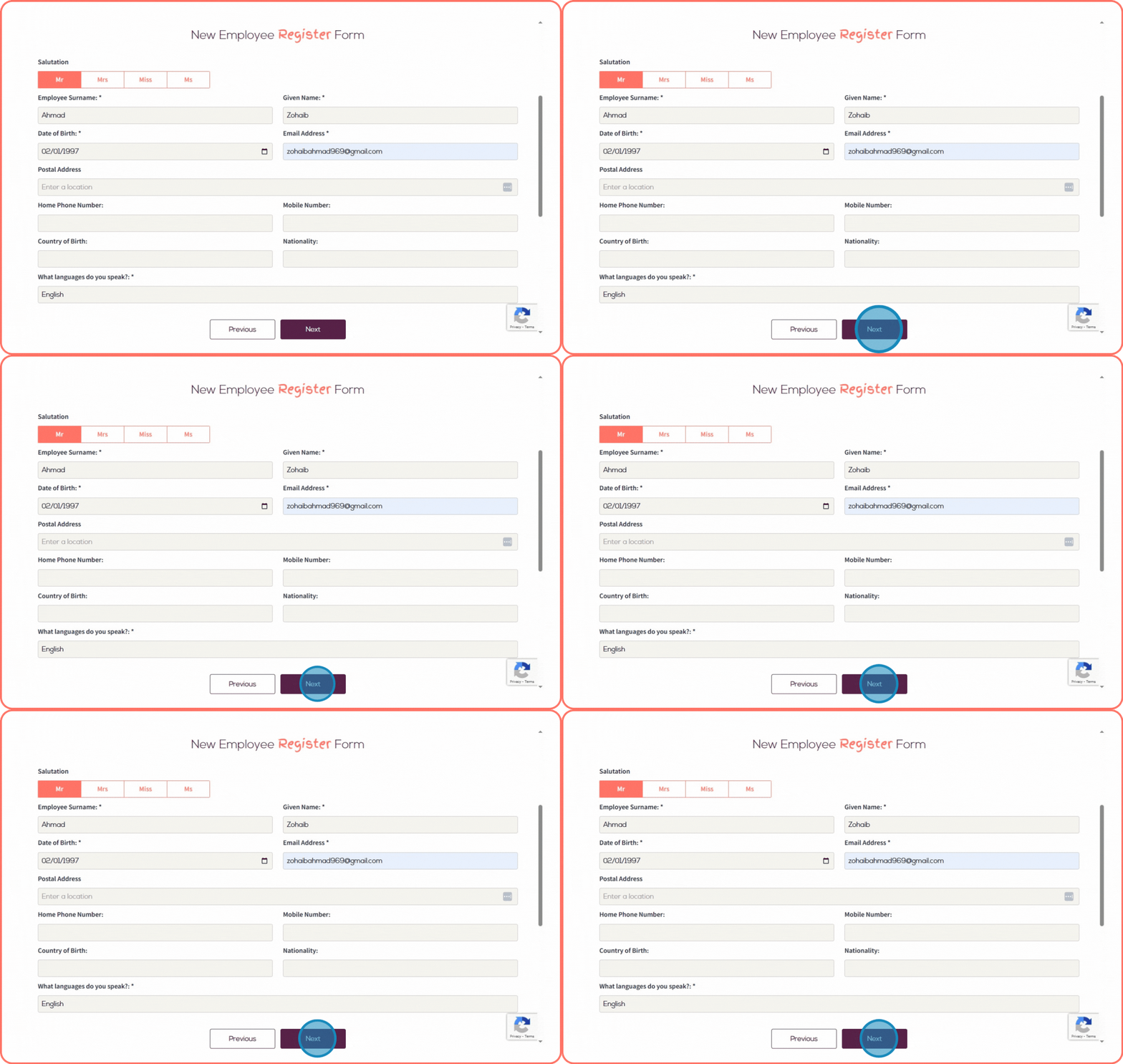
Step 6:
Fill in all the required fields on the form.
Once completed, click the Next button to proceed.
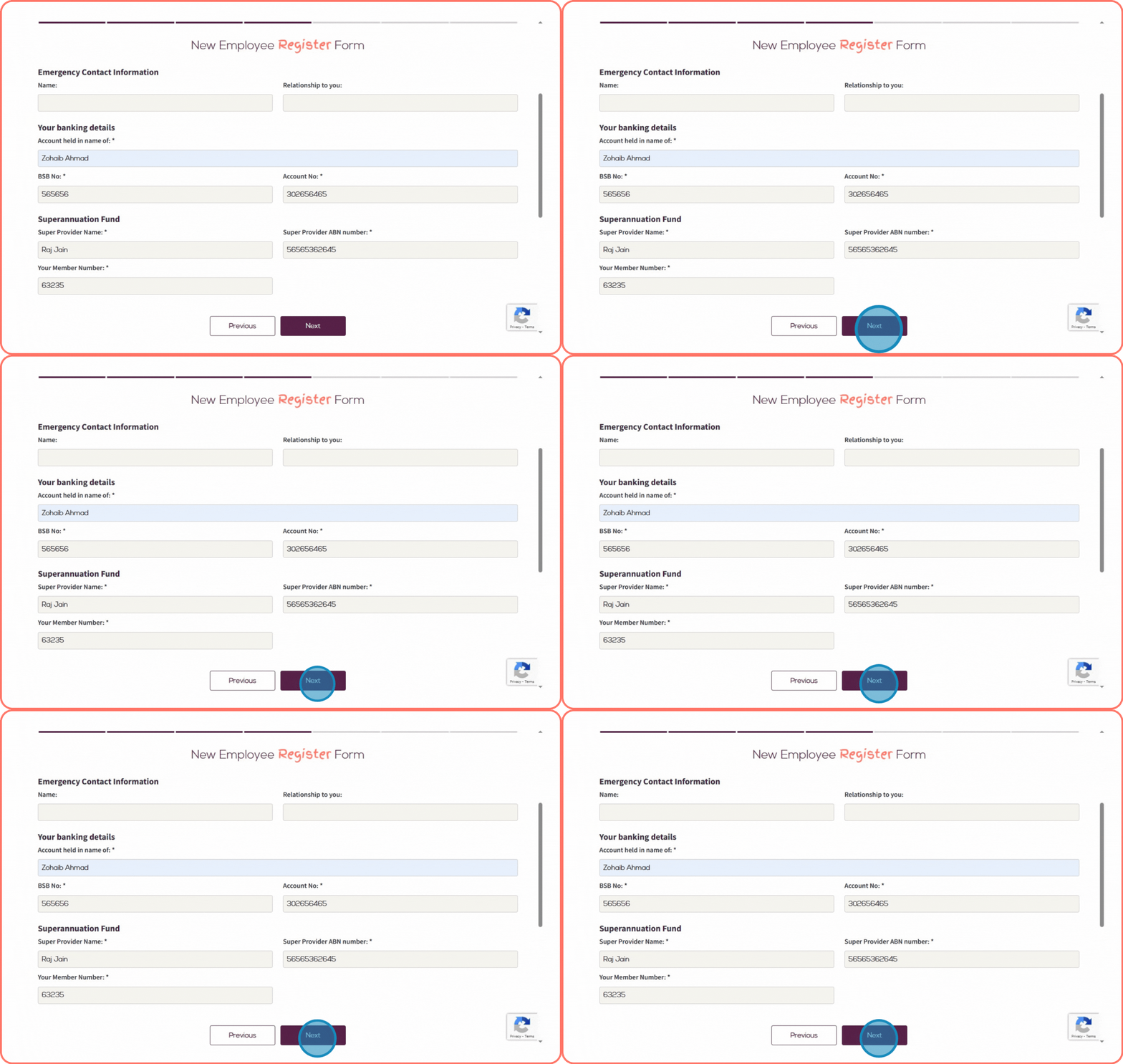
Step 7:
After that, the Employee Availability Form will appear.
- Add your availability details.
- Click the Next button to proceed.
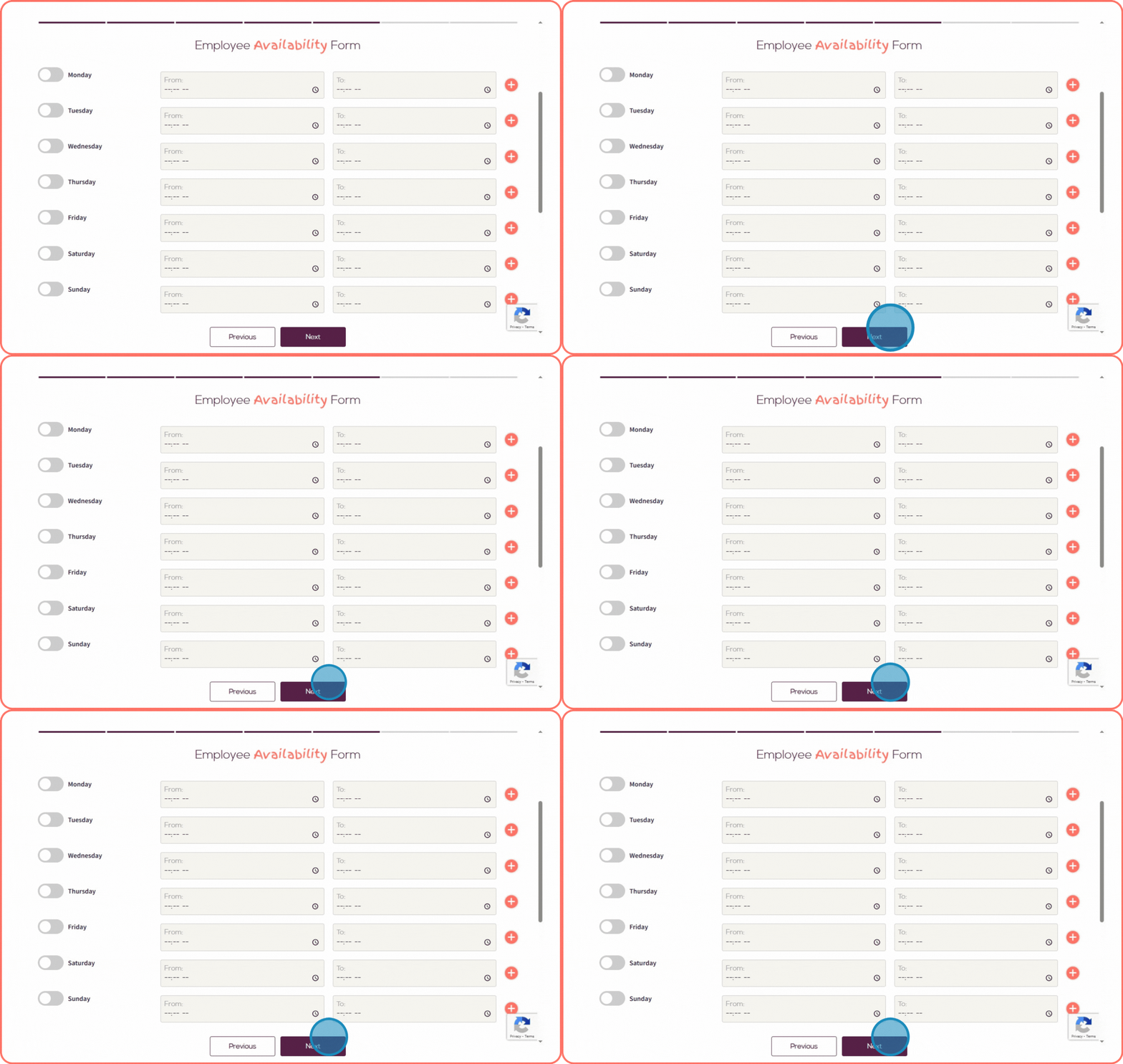
Step 8:
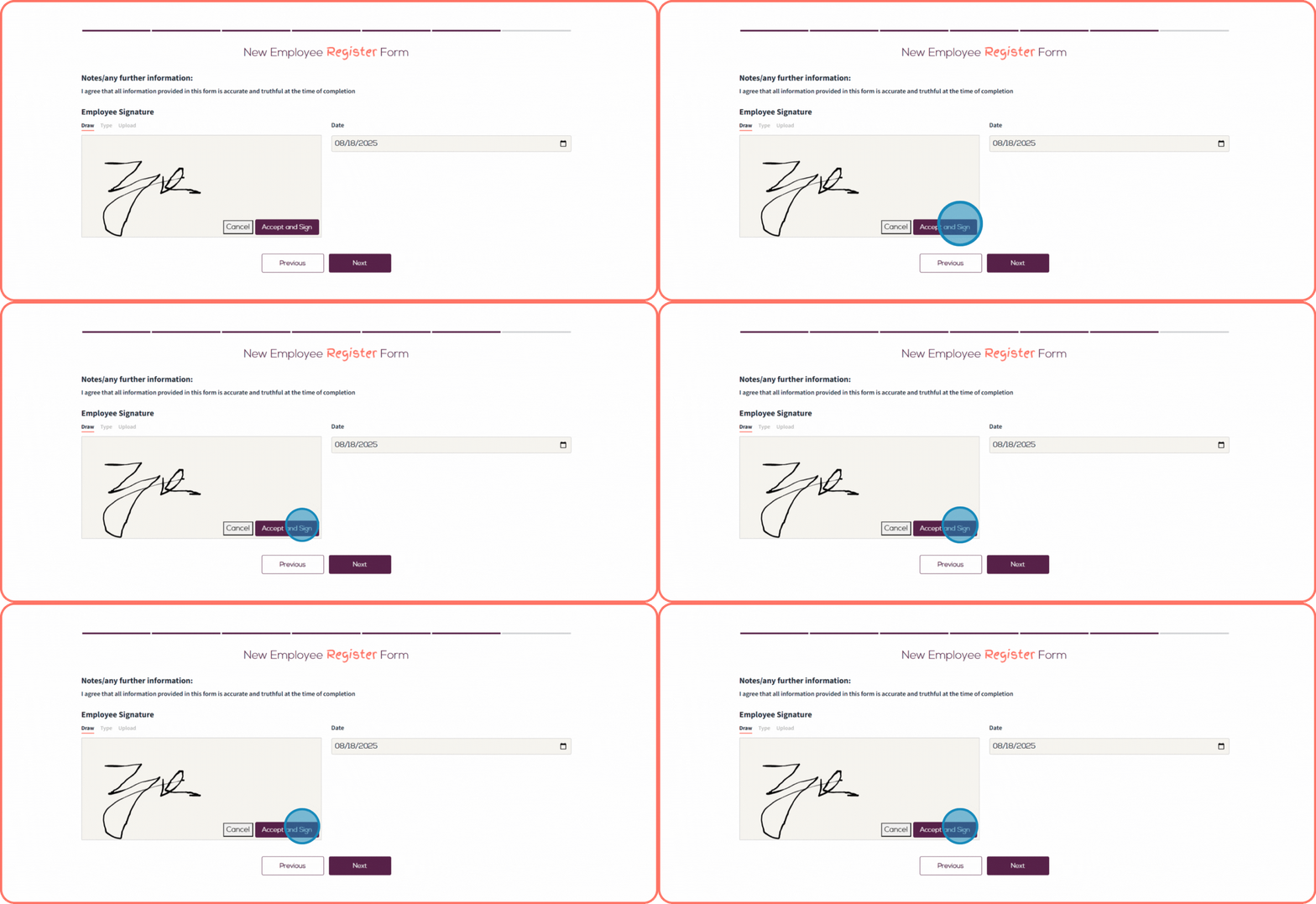
On the New Employee Registration Form, you are required to add your signature. You can do this in one of three ways:
- Draw your signature in the signature box,
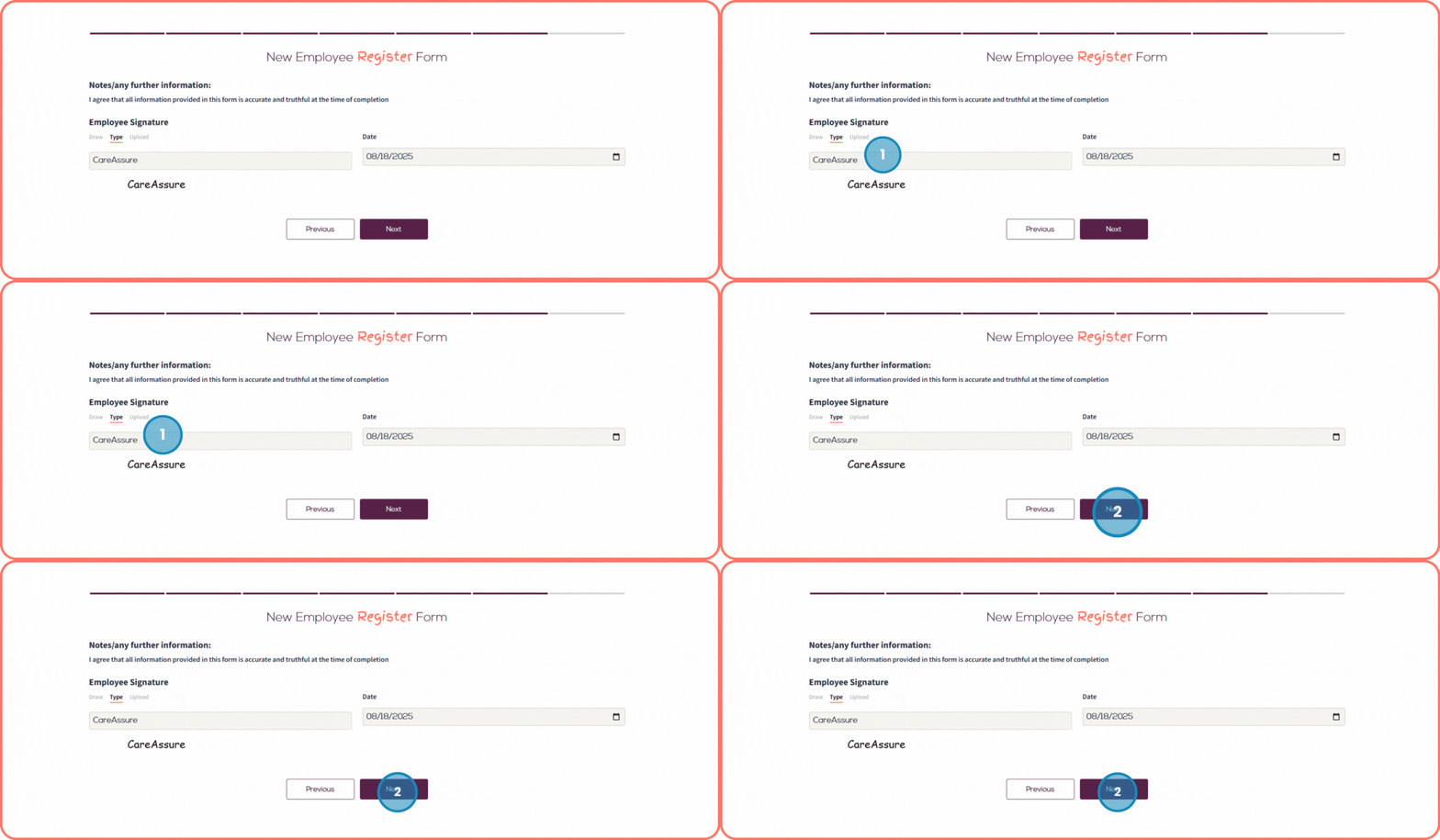
- Type your signature, or
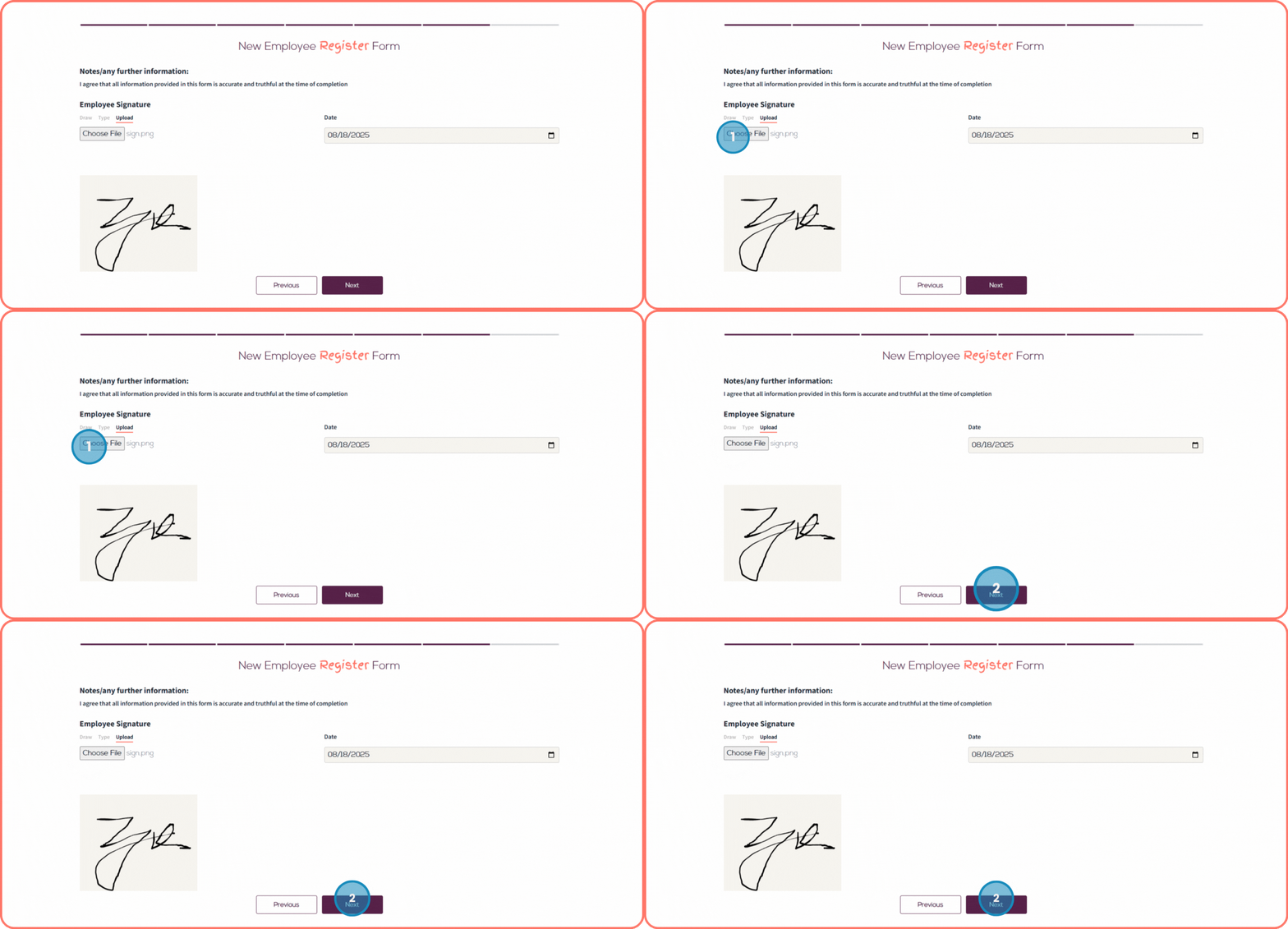
- Upload your signature file.
If you choose to draw your signature in the signature box, click Accept and Sign to confirm.
Step 9:
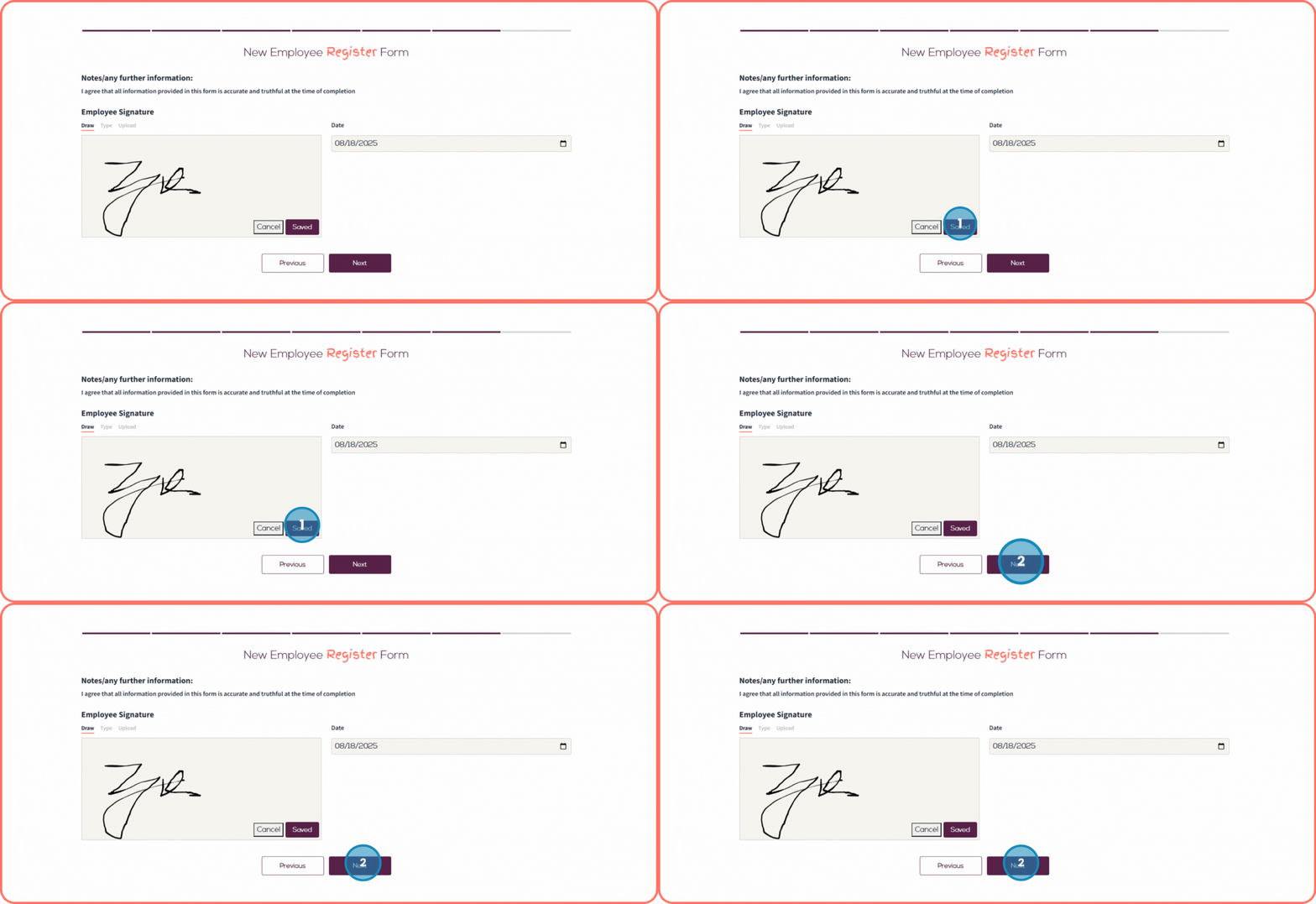
After adding your signature, click Save Signature.
Once saved, click the Next button to continue.
Step 10:
If you would like to type your signature, click on the Type tab.
Enter your signature in the input box, review the preview, and then click the Next button to continue.
Step 11:
If you prefer to upload your signature, click on the Upload tab.
Select and upload your signature file, review the preview, and then click the Next button to continue.
Step 12:
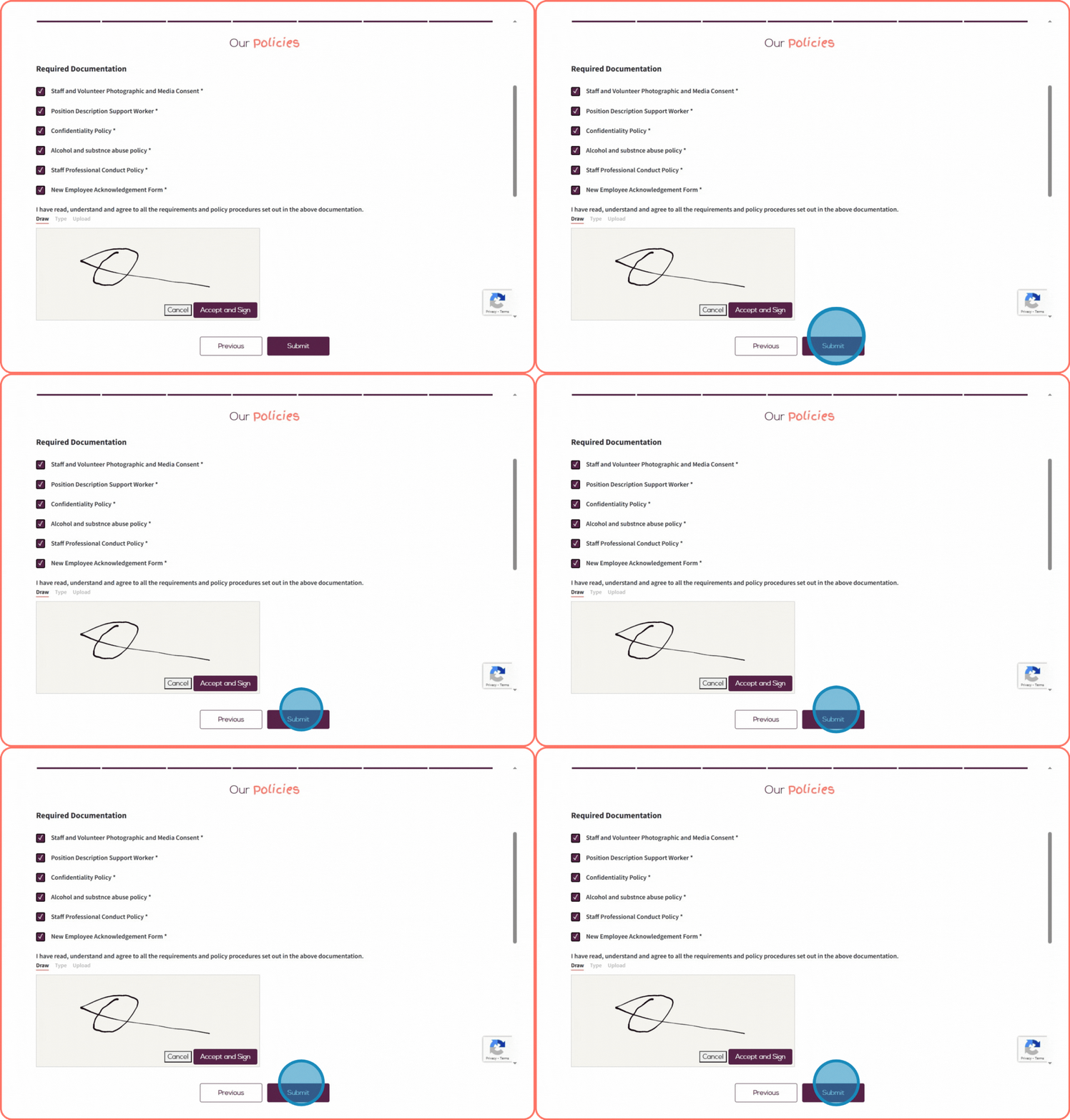
Review and acknowledge all the listed policies.
Add your signature in the designated section.
Click the Accept and Sign button.
Finally, click the Submit button to complete and submit the form.
Step 13:
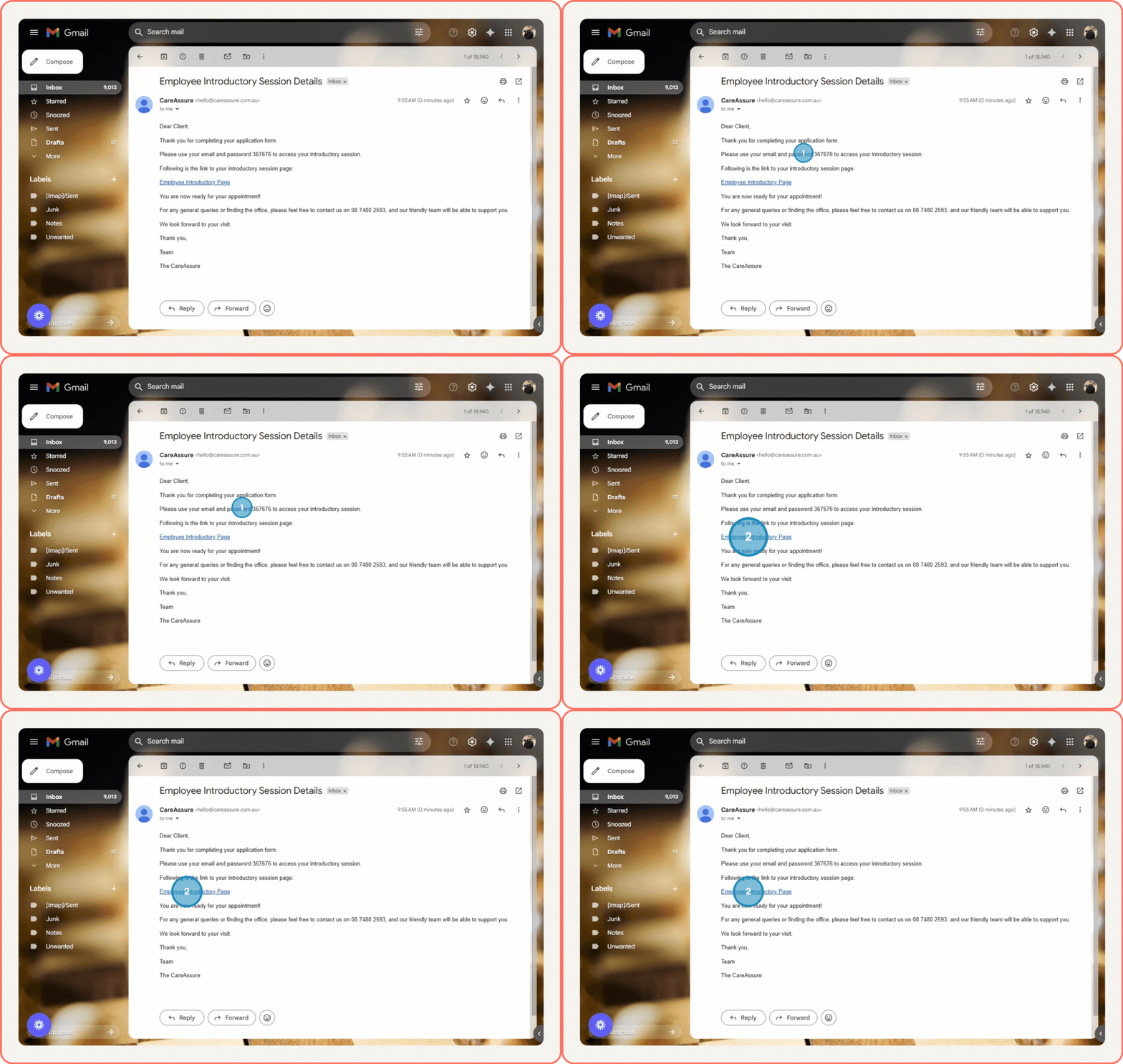
Check your mailbox and open the Employee Introductory Session Details email.
This email will include the Employee Portal URL along with your login password.
Click the provided Employee Introductory Page link to access the portal
Step 14:
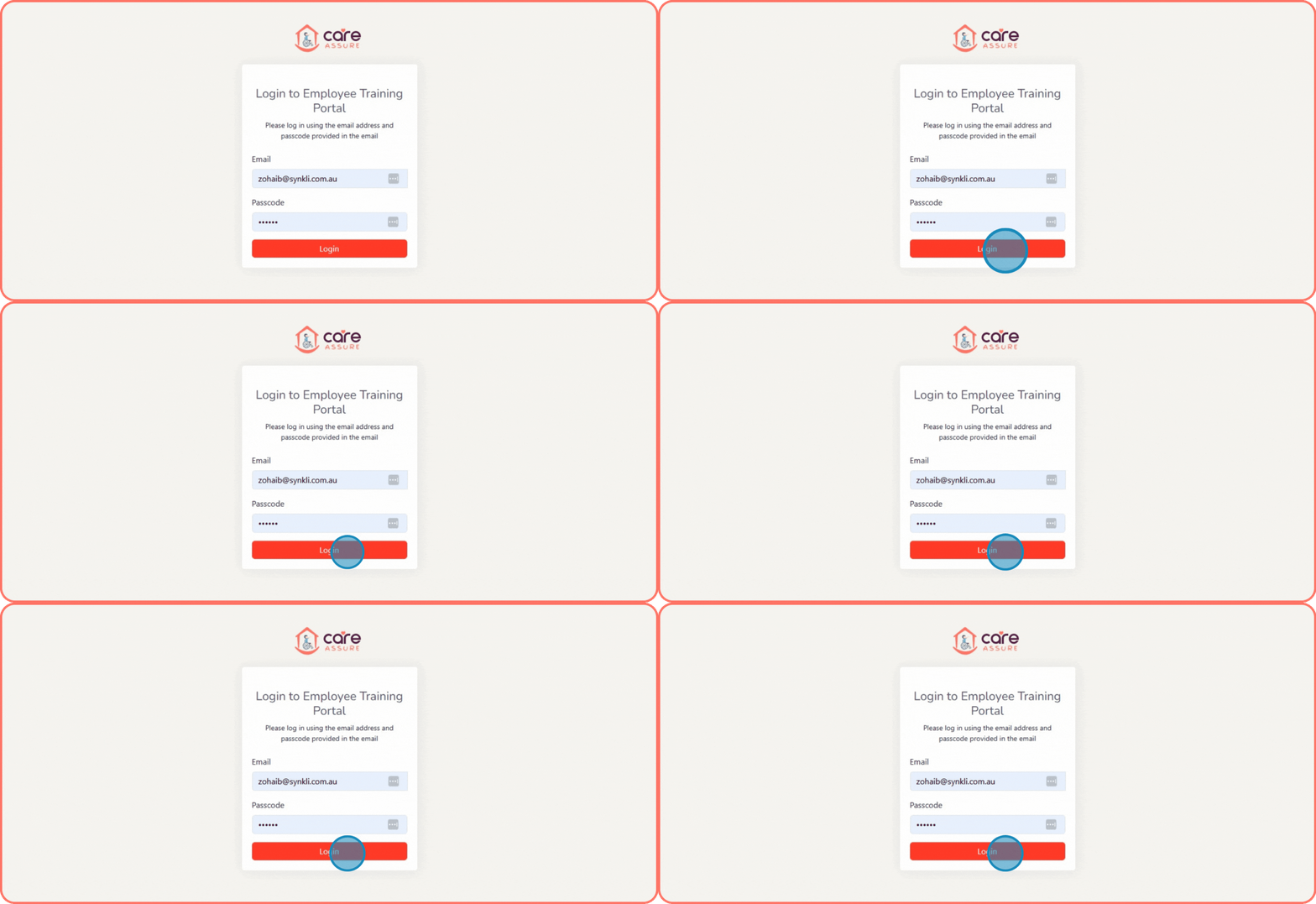
You will see the login screen.
Enter your email address and password.
Click the Login button to continue.
Step 15:
After logging in, you will see the Employee Training Portal dashboard.